.png)
Updating Accounting Information such as Adding Purchase Information, Costs and or Return Costs
A guide on how to add Purchase Information, Costs and Return Costs to vehicles in your existing or previous stock inventory
Updating Vehicle Records Information (Purchase Info, Costs and more)
The following guide breaks down how to add and maintain vehicle records. This guide focuses on Purchase Information although the same methods can be used to add and update other vehicle records
When adding vehicles to stock, you will be presented with an option to add the purchase details as part of that particular flow. For a detailed guide on adding vehicles to stock, see here.
Vehicles Currently in stock
For ease of navigation, we have added the option to navigate to the Purchase Information records from a number of places
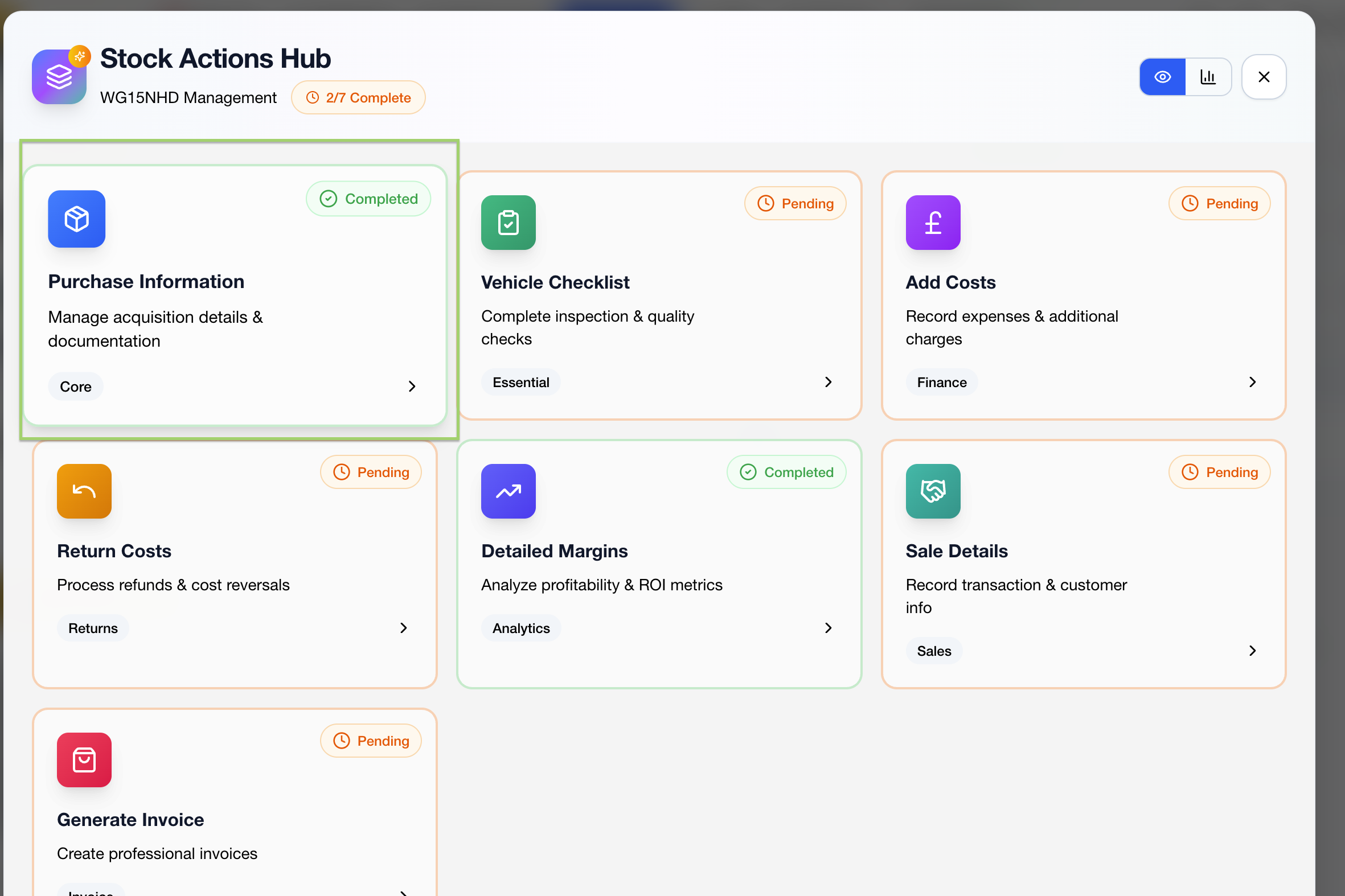
Option 1 - From the MyStock Forecourt tab, by clicking on the cog icon and selecting the Purchase Information option
 |  |
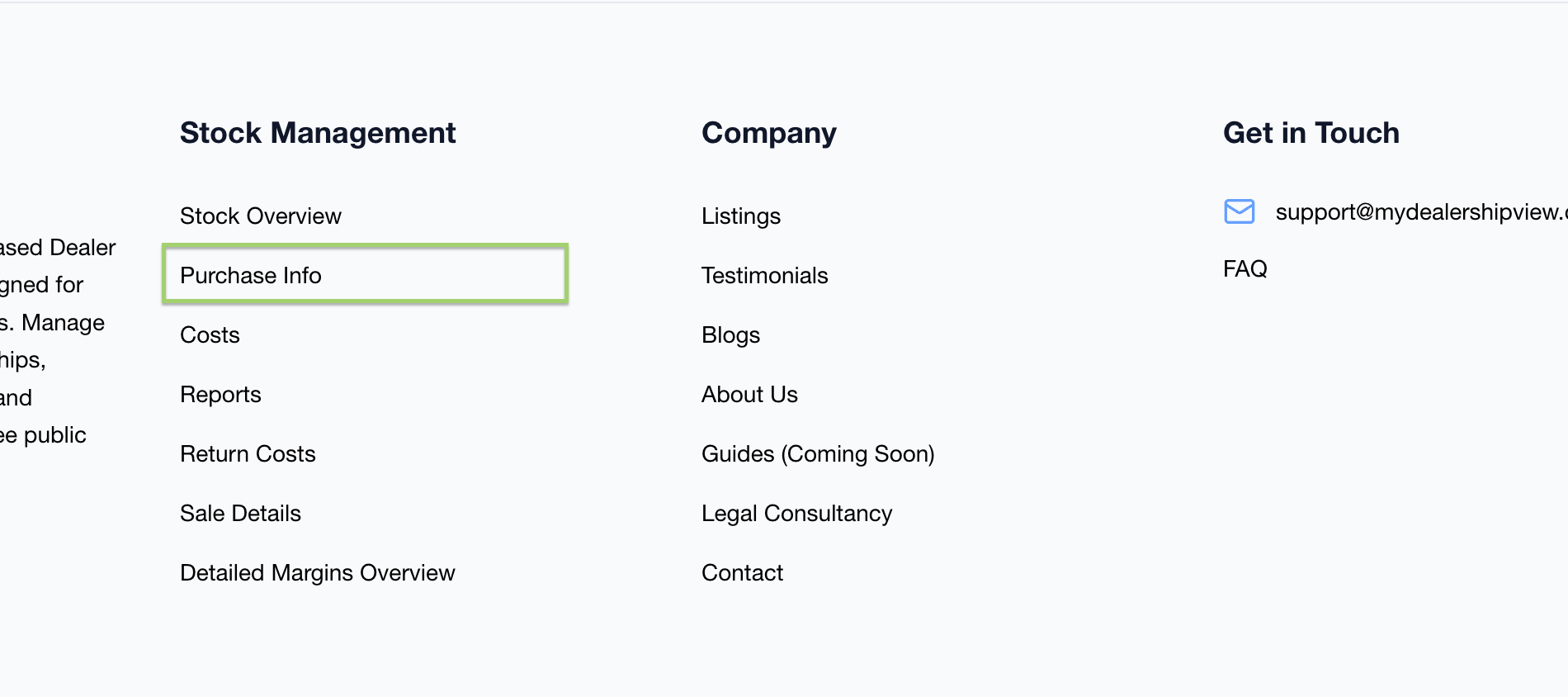
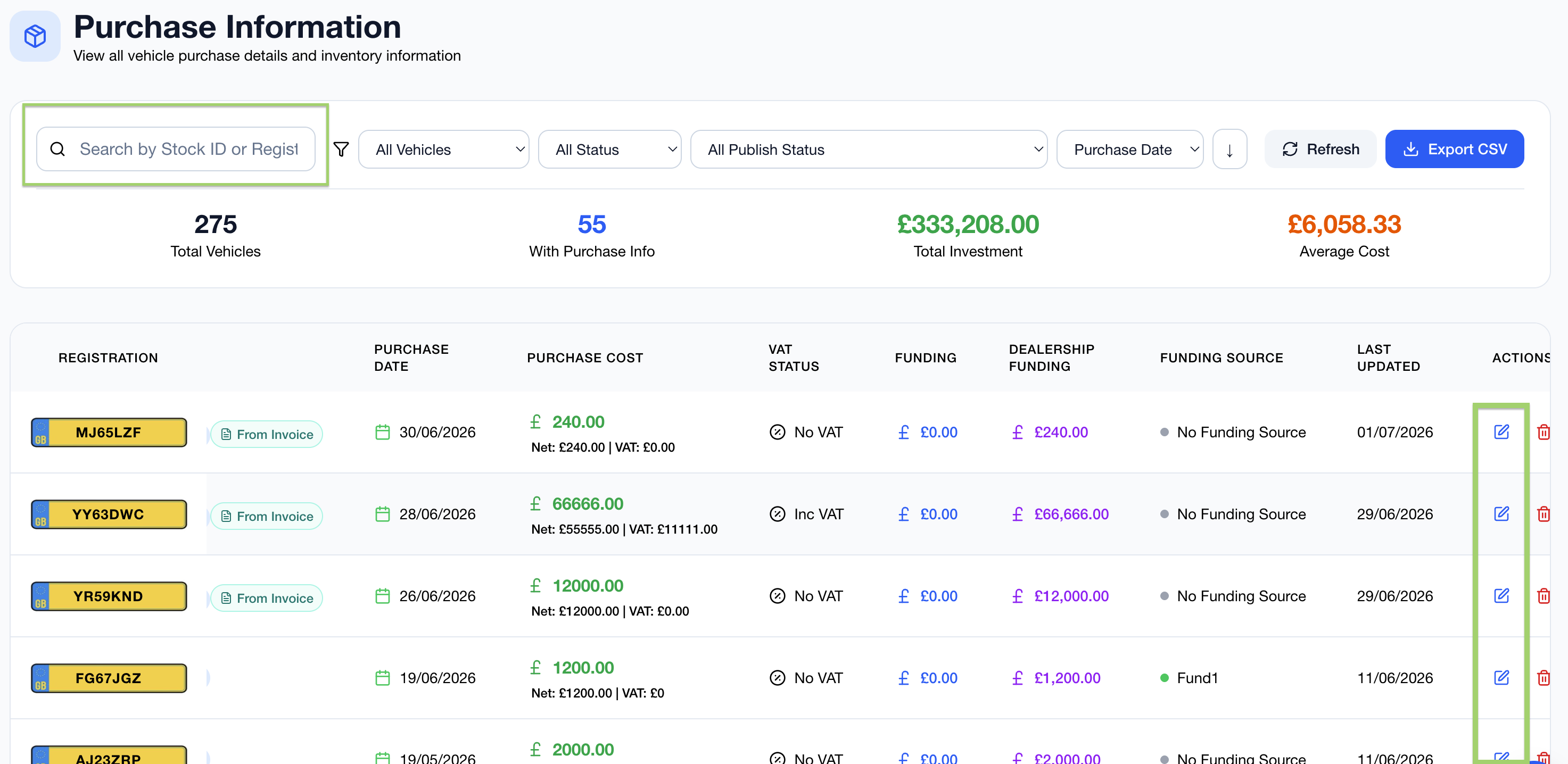
Option 2 - By selecting Purchase info from the footer menu, searching for the vehicle record and the edit button (also available for vehicles that have been sold)
 |  |
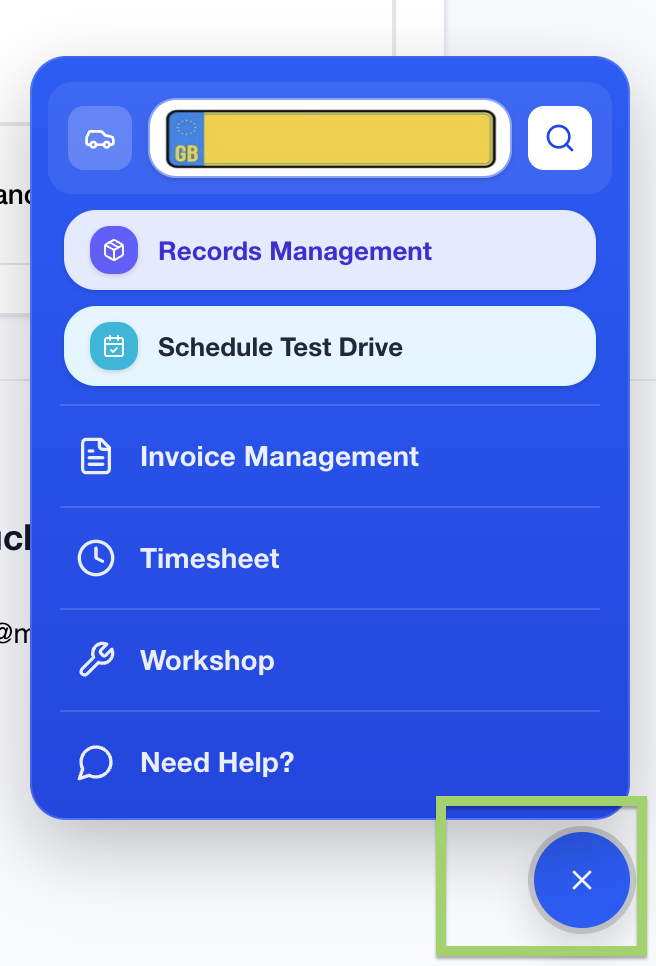
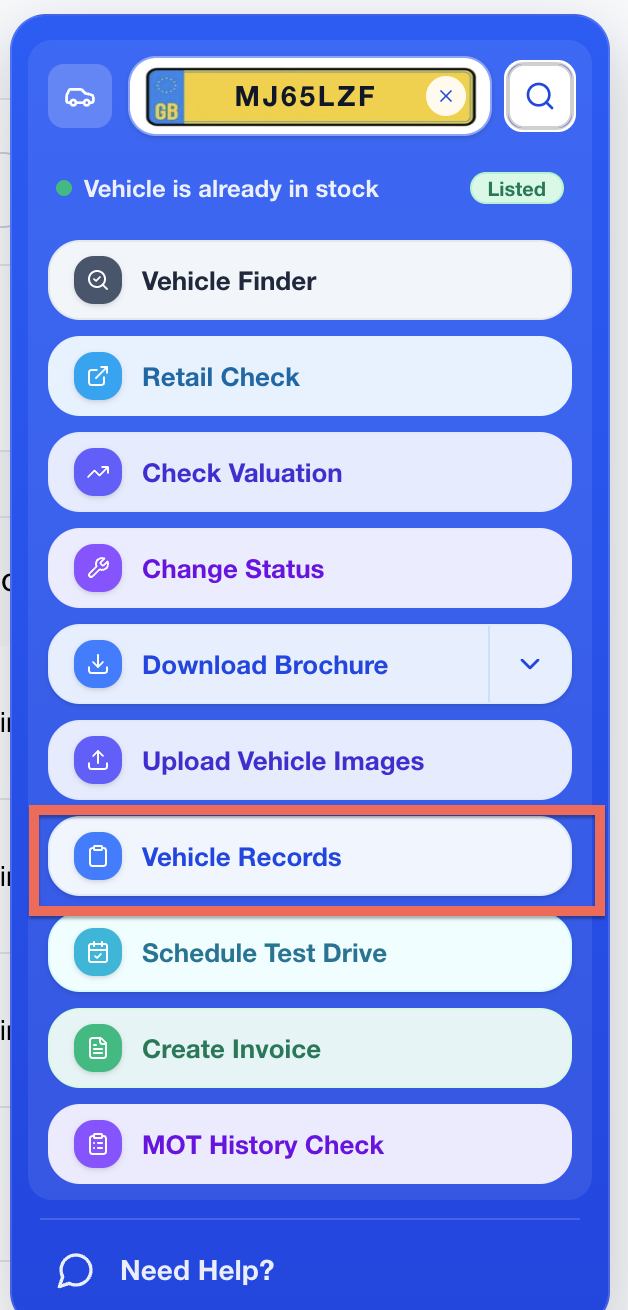
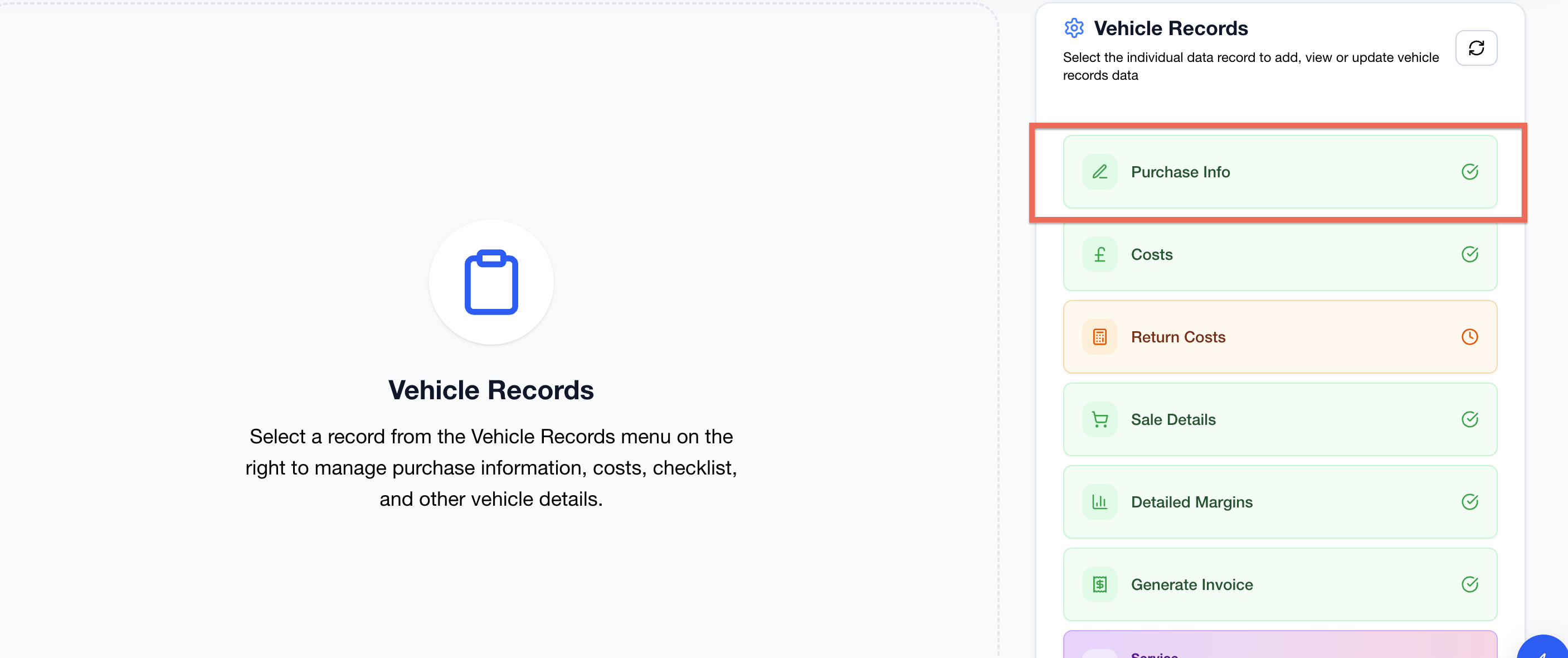
Option 3 - By selecting the Quick Actions symbol, entering the vehicle registration and selecting Vehicle Records following by Purchase info (also available for vehicles that have been sold)
 |  |  |
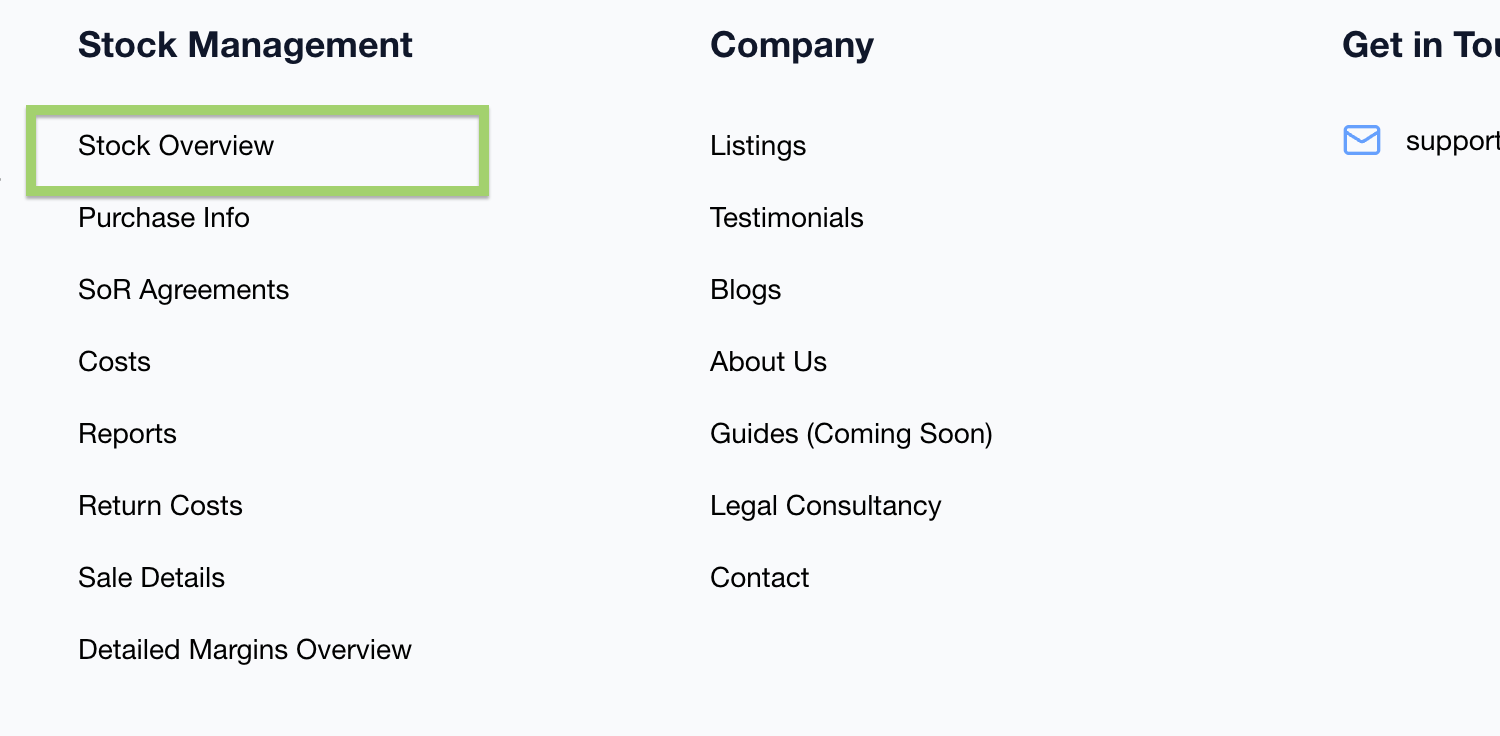
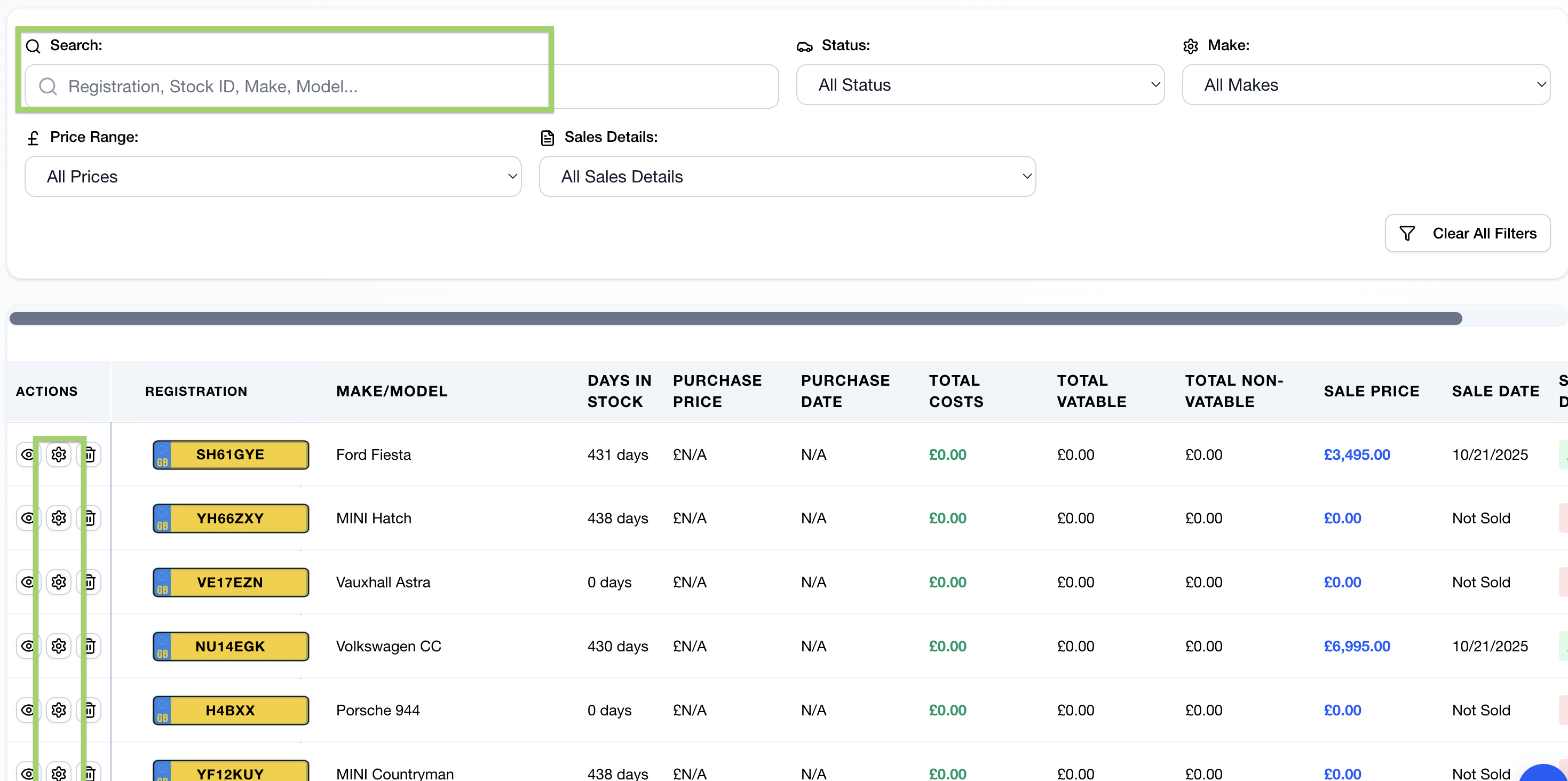
Option 4 - By selecting Stock Overview, searching Vehicle Records and selecting the actions cog
 |  | 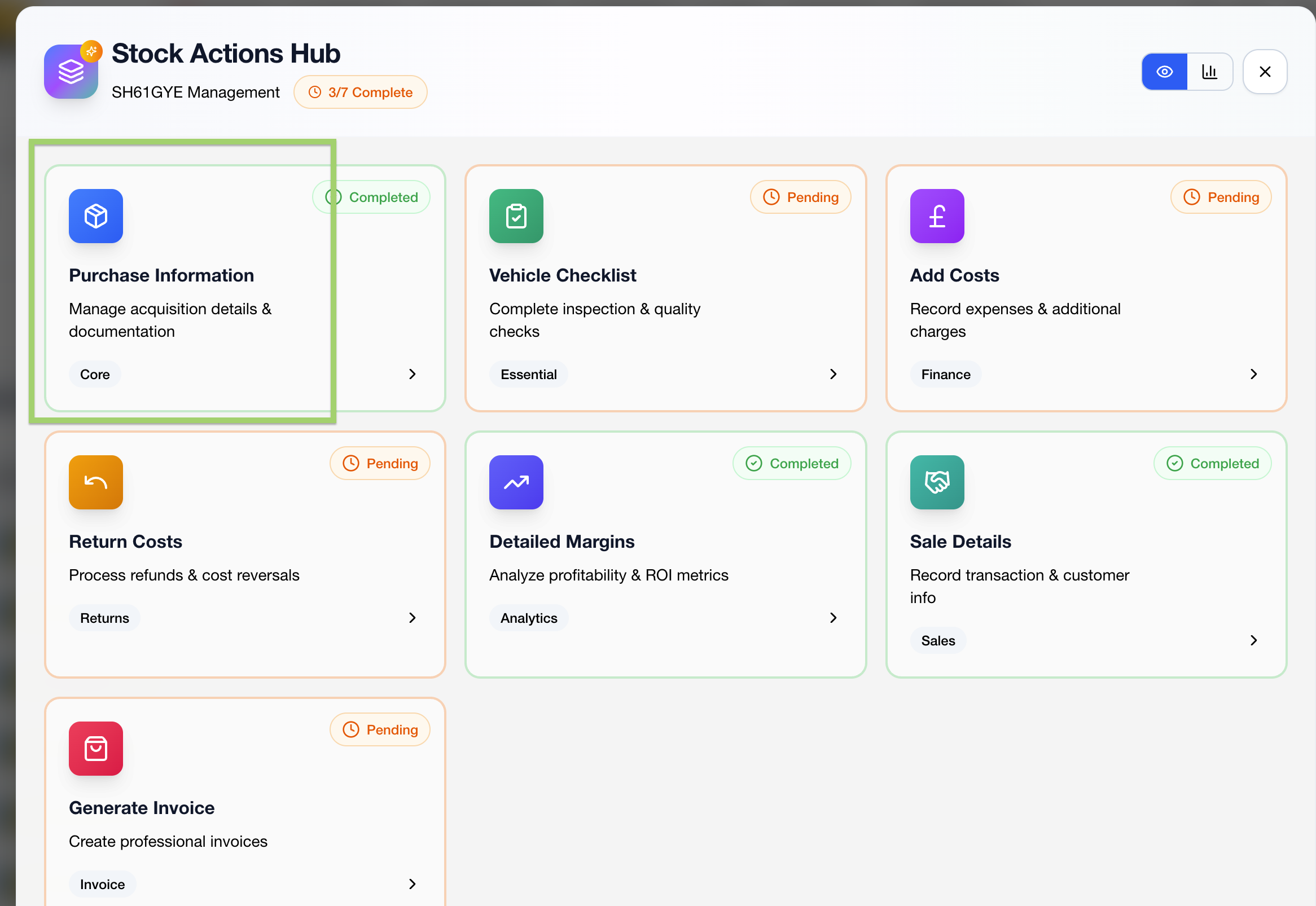 |
Please note - Purchase Invoices cab can be merged into records on the the Purchase Information screen. Sale Details will automatically be added to Sale Details when Sales Invoices are created. Editing these records does not update the linked Purchase/Sales Invoice